
Introduction
If you run an MSP, you often do not control your clients’ DNS. It sits with a web agency, a registrar or the client’s own IT team. Moving a domain from p=none to quarantine to reject then takes three requests to someone else, and three waits. Rolling a change back takes another.
Managed DMARC stops the back and forth. Get one CNAME record added, once, and from then on you set and change the DMARC policy from the VerifyDMARC dashboard. It is now available as a preview, on every plan.
How It Works
Setup starts in the Managed DMARC section of the domain’s Domain Setup page.
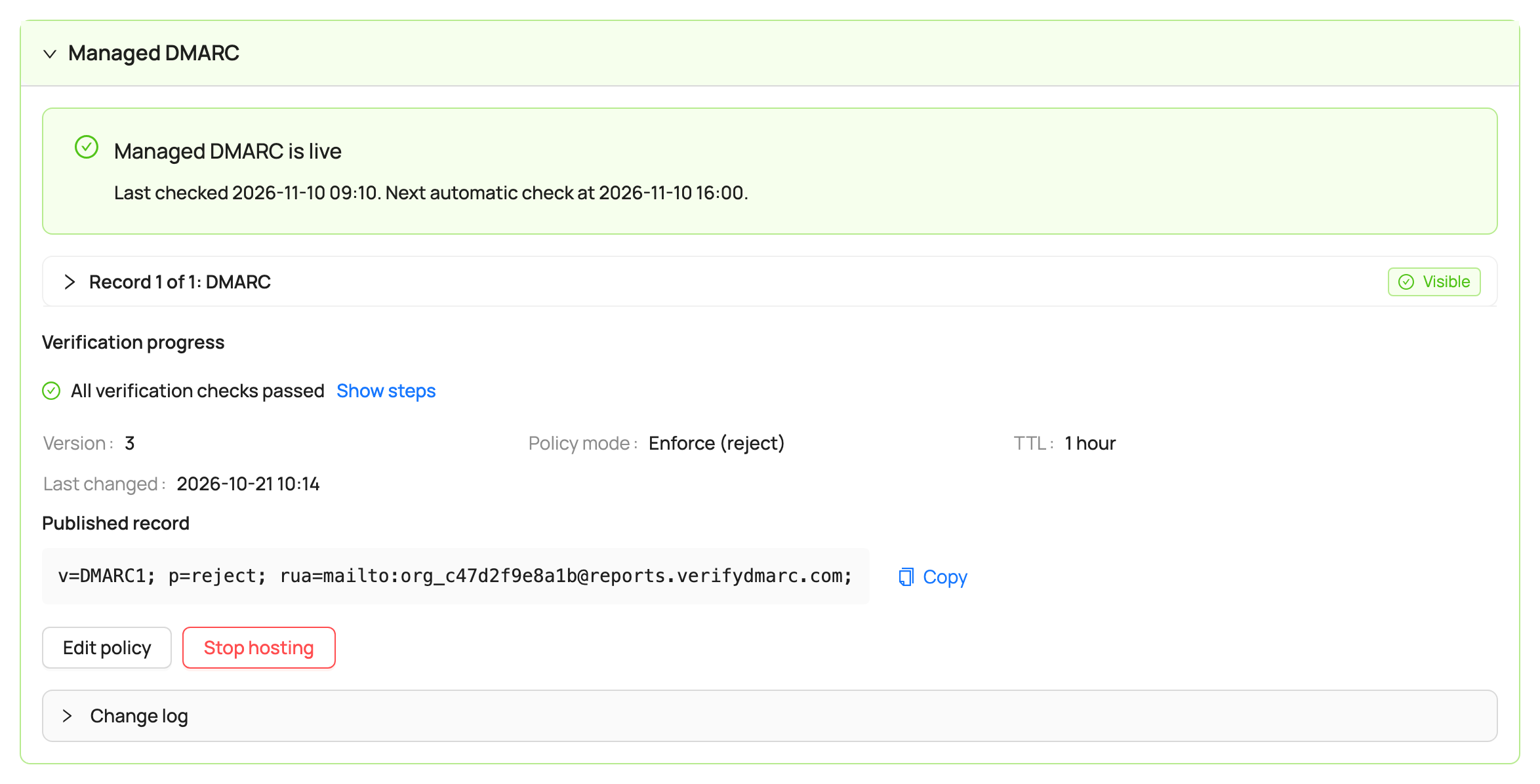
- Choose your policy. Select Set Up Managed DMARC and choose the domain and subdomain policies. If the domain already has a DMARC record, the editor starts from it and lists what will change, so the current policy carries over.
- Add one CNAME record at
_dmarc.yourdomain. The dashboard shows the exact target. It replaces any existing_dmarcTXT record, because the two cannot exist together. - Change the policy in the dashboard when the domain is ready for the next step. There is nothing more to change in DNS.
You can also choose Managed DMARC when you add a new domain. When it is turned on for your organisation, the Add Domain wizard asks whether VerifyDMARC hosts the record or you publish it yourself.
Built for Teams That Share the Work
A DMARC policy change affects every email a domain sends, so Managed DMARC keeps track of who did what:
- Change log. Every change shows who made it, when, and what the record was before, for one year. You can load an earlier version into the editor and publish it again.
- Regression Alerts still apply. If you have Domain Setup Regression Alerts turned on, weakening a policy here alerts you the same as a change at the DNS provider.
- Failed changes are reported. If a change cannot be published, the person who made it gets an email.
- You decide who can change policy. It needs the Domain Manager role or higher, and an Organisation Admin can turn Managed DMARC off for the whole organisation.
- Stop at any time. Select Stop hosting and the page shows the TXT record to publish in place of the CNAME. Your record stays live until you have replaced it.
Prefer to Publish It Yourself?
Nothing changes. The DMARC Record Generator still builds the TXT record for you to add at your own DNS provider, and VerifyDMARC checks it hourly as before.
Managed DMARC records are served from Amazon Route 53. If you need a specific availability SLA for your DMARC record, publish it at a DNS provider that offers one.
Getting Started
Managed DMARC is included with all plans, for every domain. New organisations start with it turned on. If your organisation was created before this release, an Organisation Admin turns it on in Organisation Preferences.
Then open a domain’s Domain Setup page and select Set Up Managed DMARC. See the Managed DMARC documentation for each step. It is in preview, and we would love your feedback at support@verifydmarc.com.
Also new: Managed MTA-STS Hosting can now host your TLS reporting record as well, when TLS reporting is off for the domain.
Moving from a provider that hosts your DMARC record? How to Migrate DMARC Provider covers the switch.
Not a VerifyDMARC customer yet? Sign up for our 30-day free trial, no credit card required.